
Back when I used RStudio, I could launch a project in RStudio by launching the .Rproj file, and I followed this short video from Hadley Wickham on wiring up Alfred to index .Rproj files, so I could launch them with a keyboard shortcut.
Now I use Positron instead of RStudio, and Raycast (free version) instead of Alfred.1
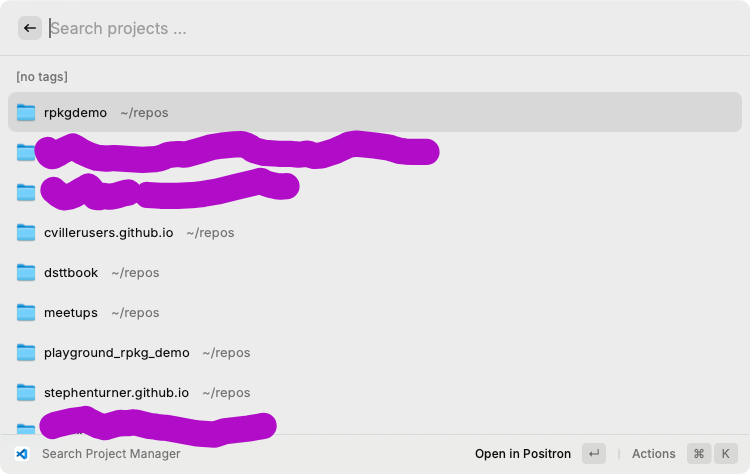
With a few keystrokes (CMD-space to activate Raycast, type “pos” to search through projects in Positron) I can launch a project in Positron. Here’s what it looks like.
Here’s how to set that up. The gist is outlined in the Positron docs here.
Positron + project manager
The first step is to install the project manager extension in Positron. Once you do that, the project manager appears as a stack of folders in the Activity Bar. When clicked, you gain access to a clickable, organized listing of your projects. Here’s mine, showing my favorite folders (with a redaction).
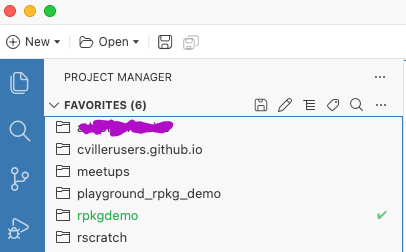
From here, in Positron, you can just click on a folder and it’ll open a new Positron window running in that project. This is essentially the same thing as double-clicking the .Rproj file in RStudio.
Raycast
Next, install Raycast and the Visual Studio Project Manager Extension (yes, VS Code). In the settings, make a few changes, annotated below. Add “pos” as the alias, and in the options on the right, set “Positron” as your “VS Code”. I know that looks weird, but this is how it’s done.
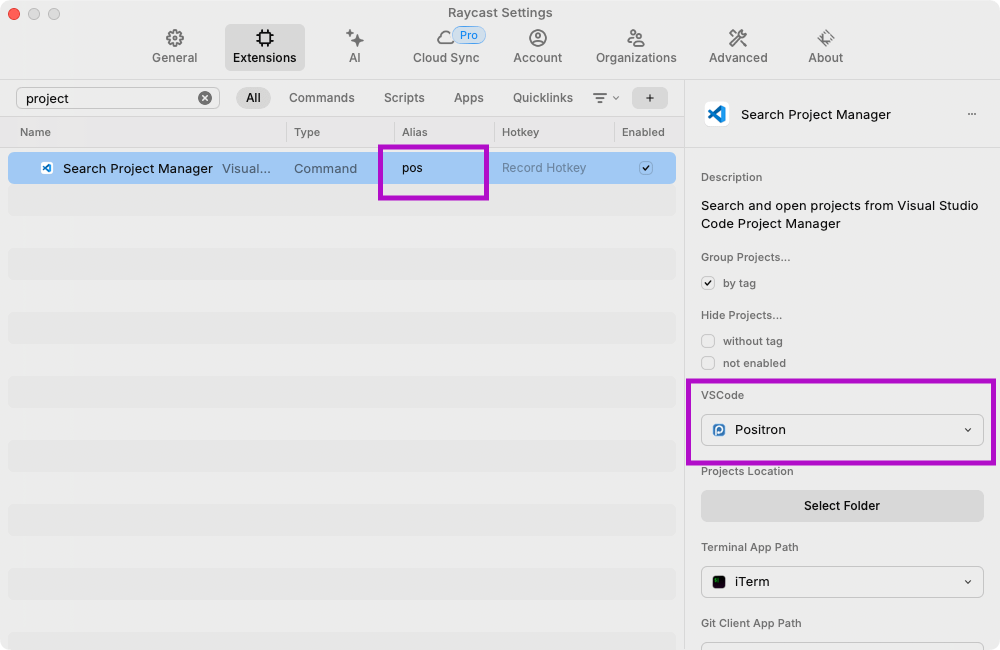
Now, when you activate Raycast, you can type “pos” and you’ll bring up the Positron project manager.

From here you can select which project you want to open. Hit Enter and it’ll open Positron running in that folder/project.
The workflow is described here in the Positron docs.
Hat tip to Andrew Heiss for turning me on to Raycast and Espanso with his blog post here to accompany his recent Posit Data Science Lab.